


Bluetooth Low Energy (LE) Audio is a major step forward for accessibility, allowing hearing aid users to stream audio and take calls directly from their laptop. This technology provides better sound quality and uses less power than older Bluetooth versions. However, because it is a new standard, it requires specific hardware and the latest version of Windows 11 to work.
Checking if your Windows 11 machine can pair with your hearing aids is very easy.
Why version 24H2 of Windows 11 is important
For those with compatible hardware, Windows 11 version 24H2 introduces enhanced controls.

On a supported machine, Windows 11 allows you to pair your devices and even adjust audio presets or ambient sound levels directly from your PC.
If your laptop does not support the required technology, you will see a message that says “Your PC doesn’t support Bluetooth LE Audio hearing devices”. This indicates that while you may still be able to connect other Bluetooth accessories, direct streaming to hearing aids using the LE Audio standard is not available on your current hardware.
Find out if your Windows 11 machine is compatible by using the ‘hearing devices’ search
The most direct way to check if your laptop or desktop computer is compatible is to use the built-in search feature in your settings. This method quickly brings you to a dedicated dashboard for hearing technology.
- Open the Start menu and type ‘Hearing devices’ into the search bar.
- Select the Hearing devices option from the results.
- This will open the Accessibility menu directly on the hearing devices page.
This page acts as a confirmation for your hardware capabilities.

If your laptop is ready for this technology, the menu will explicitly state that your PC supports Bluetooth LE Audio hearing devices.
This means your computer has the necessary Bluetooth 5.3 or newer radio and the specific drivers required to communicate directly with your hearing aids.
What it means if your PC is compatible
If your laptop confirms support, you can enjoy several benefits over traditional Bluetooth connections.
The primary advantage is direct streaming, which removes the need for intermediate streamers or neck loops. You can pair your hearing aids just like standard wireless headphones, but with much better battery efficiency.
Compatible PCs use a new audio codec called LC3.

This provides clearer sound for music and video calls and reduces latency, ensuring that the audio you hear stays in sync with the video you see on your screen.
A future update will bring Shared Audio to compatible Windows 11 machines. This includes Auracast, which allows your laptop to broadcast audio to multiple pairs of hearing aids or headphones at the same time – hence the name. At the moment, this feature is limited to
What you can do if your PC is not compatible
If your laptop displays the message that it does not support LE Audio, you are not necessarily without options. There are several ways to bridge the gap between your computer and your hearing devices to ensure you can still participate in video calls or enjoy media.
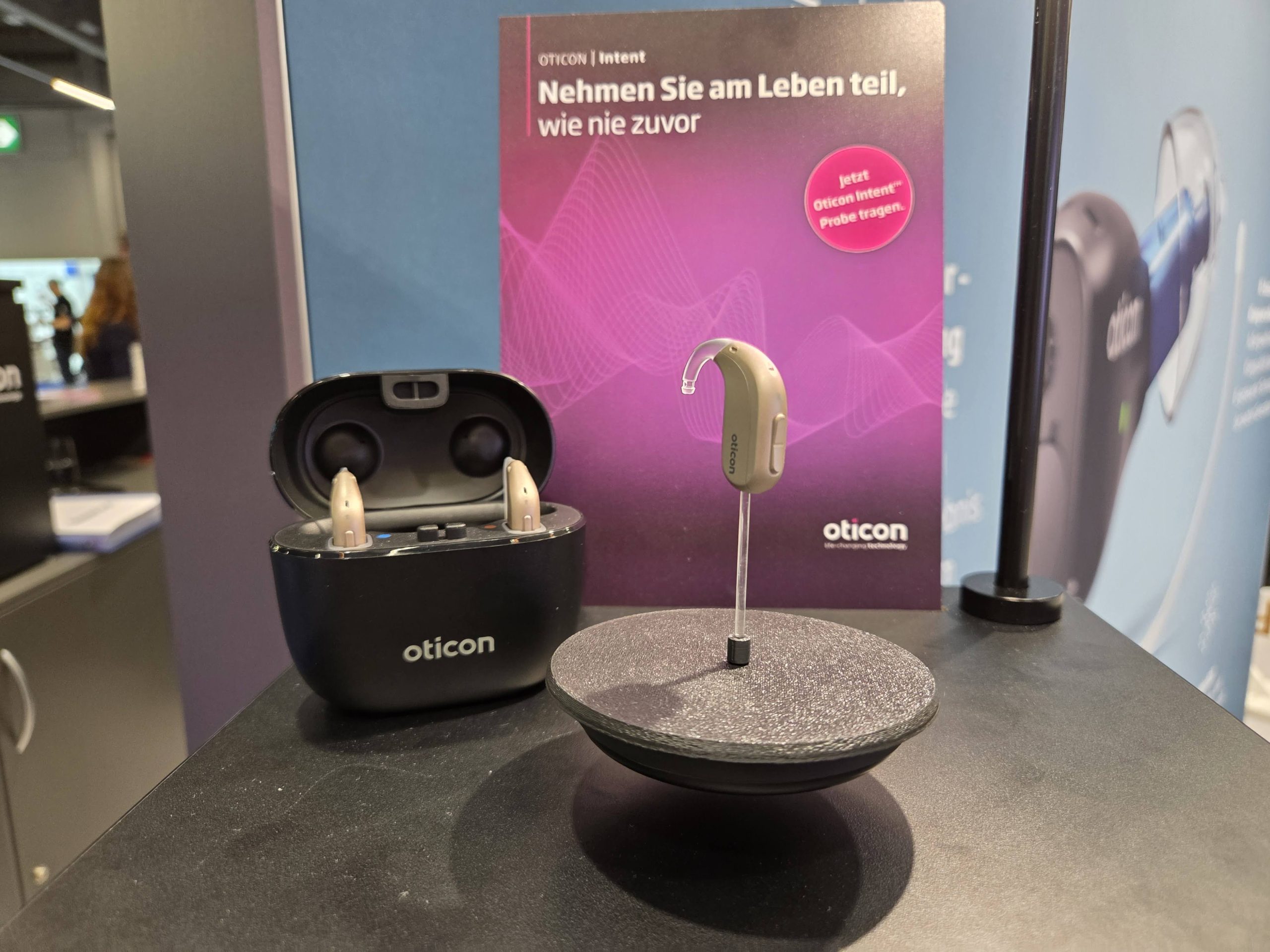
Many hearing aid manufacturers provide dedicated accessories designed specifically to solve compatibility issues.
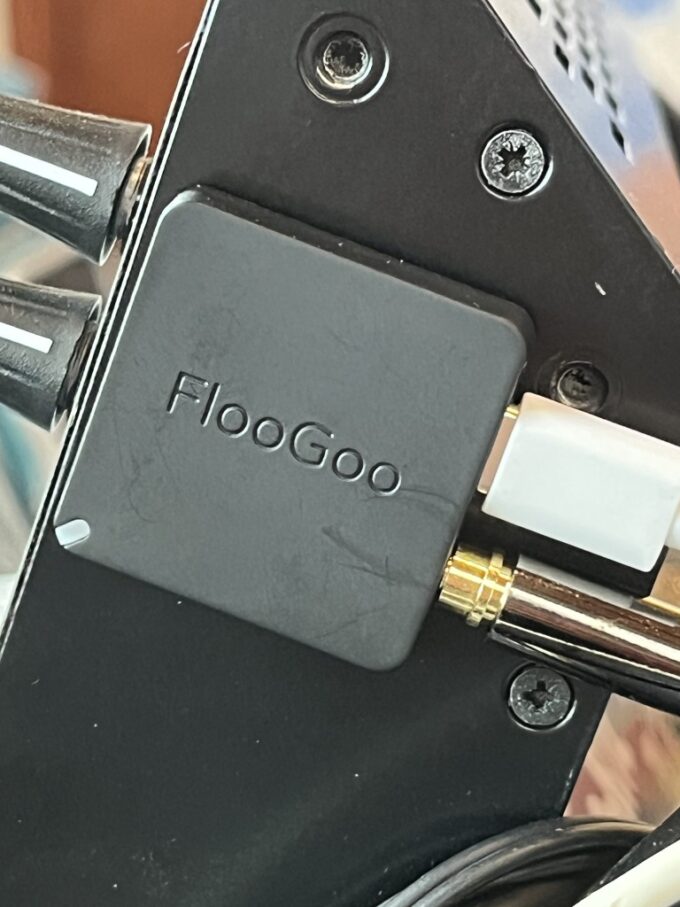
These devices, often called streamers or communication devices, plug directly into the USB port of your laptop or use Bluetooth. For those that plug in directly, instead of relying on the laptop’s internal Bluetooth radio, the dongle handles the wireless transmission itself.
It takes the audio signal from Windows 11 and sends it to your hearing aids using a proprietary signal. This is often a very reliable method because the hardware is optimised specifically for your hearing aid brand. There can be some latency (the lag between the sound leaving the computer and arriving in your ears).
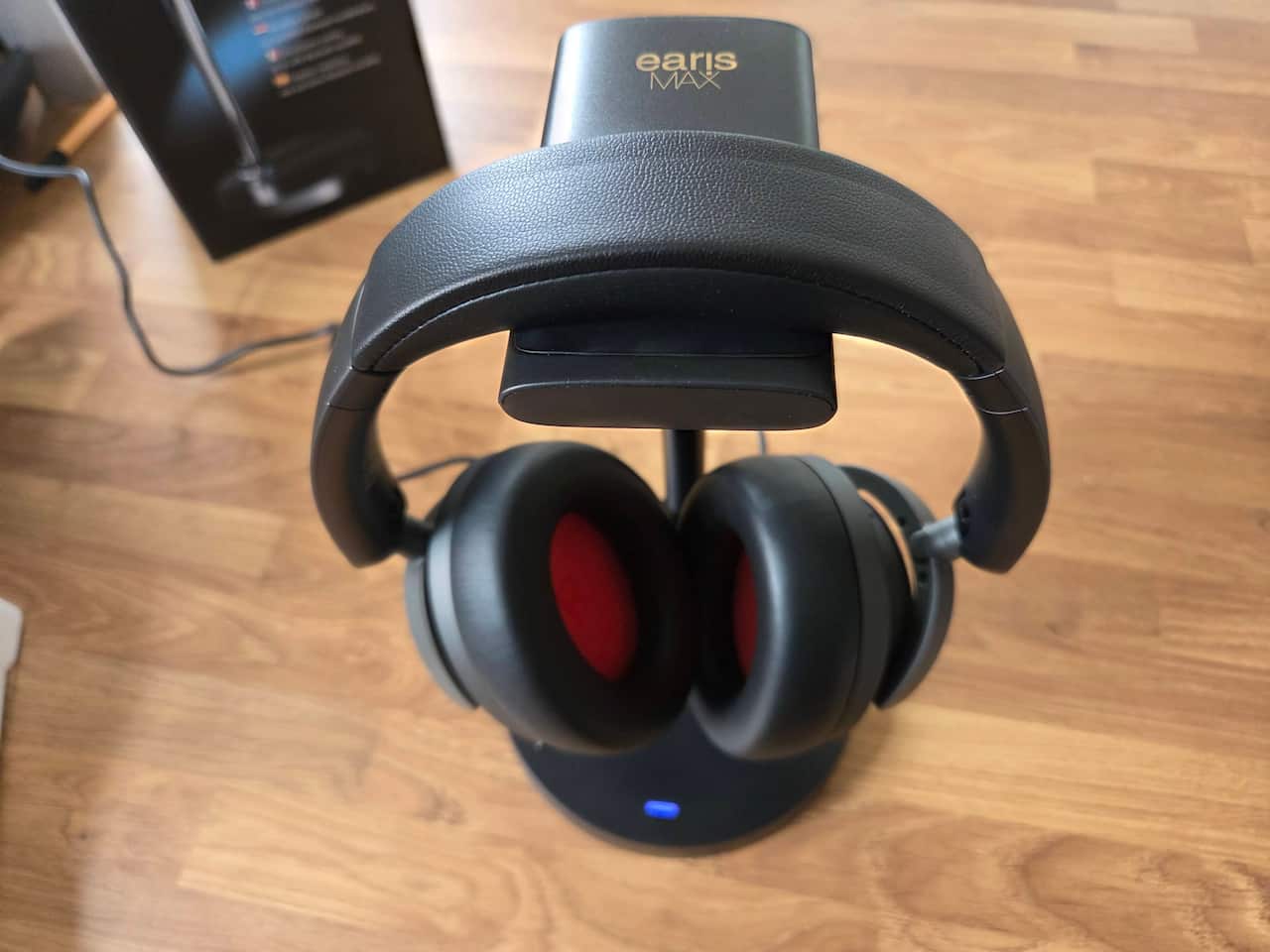
Another option is to use a standard pair of over-ear headphones.
This allows the hearing aid to pick up the sound from the headphone speakers just as it would pick up environmental speech. However, this approach depends heavily on the type of hearing aids you wear and the design of the headphones.
For some users, placing headphones over hearing aids can cause a whistling sound known as feedback. This happens when the hearing aid microphone picks up the sound from the headphone and re-amplifies it in a continuous loop.
If you have “behind the ear” (BTE) or “receiver in canal” (RIC) devices, you will need headphones with large, deep ear cups that fit entirely around the ear without pressing on the hearing aid itself.
This helps to reduce the risk of feedback and ensures the sound is directed properly into the hearing aid microphones.
Telecoil and neck loops
If your hearing aids are equipped with a telecoil (T-coil), you can use a neck loop. This device plugs into the laptop’s 3.5mm headphone jack and hangs around your neck. It converts the audio signal into an electromagnetic field, which the T-coil in your hearing aid then picks up and converts back into sound.
This is an older but highly effective technology that bypasses Bluetooth entirely and is often favoured for its simplicity and lack of interference.
AudioRelay can act as bridge for older hardware
For users whose computers do not meet the strict hardware requirements for native Bluetooth LE Audio, AudioRelay offers an alternative.
The programme works by transmitting the audio from a Windows 11 PC to a smartphone over a local network or USB connection. The smartphone then acts as a bridge, sending that audio directly to the hearing aids via the standard Bluetooth connection already established between the phone and the hearing devices.
This method is particularly useful for those who want to avoid the cost of proprietary manufacturer streamers.
To begin streaming, the user must install the AudioRelay server programme on their Windows 11 computer and the corresponding app on their mobile device. Once both are running on the same network, the computer will appear as a server within the phone app.
Selecting the computer as the source will immediately begin the audio transmission.
To ensure optimal performance, users should set the output to the AudioRelay Virtual Speaker in sound settings.

Aurahear in your inbox!













Leave a comment