

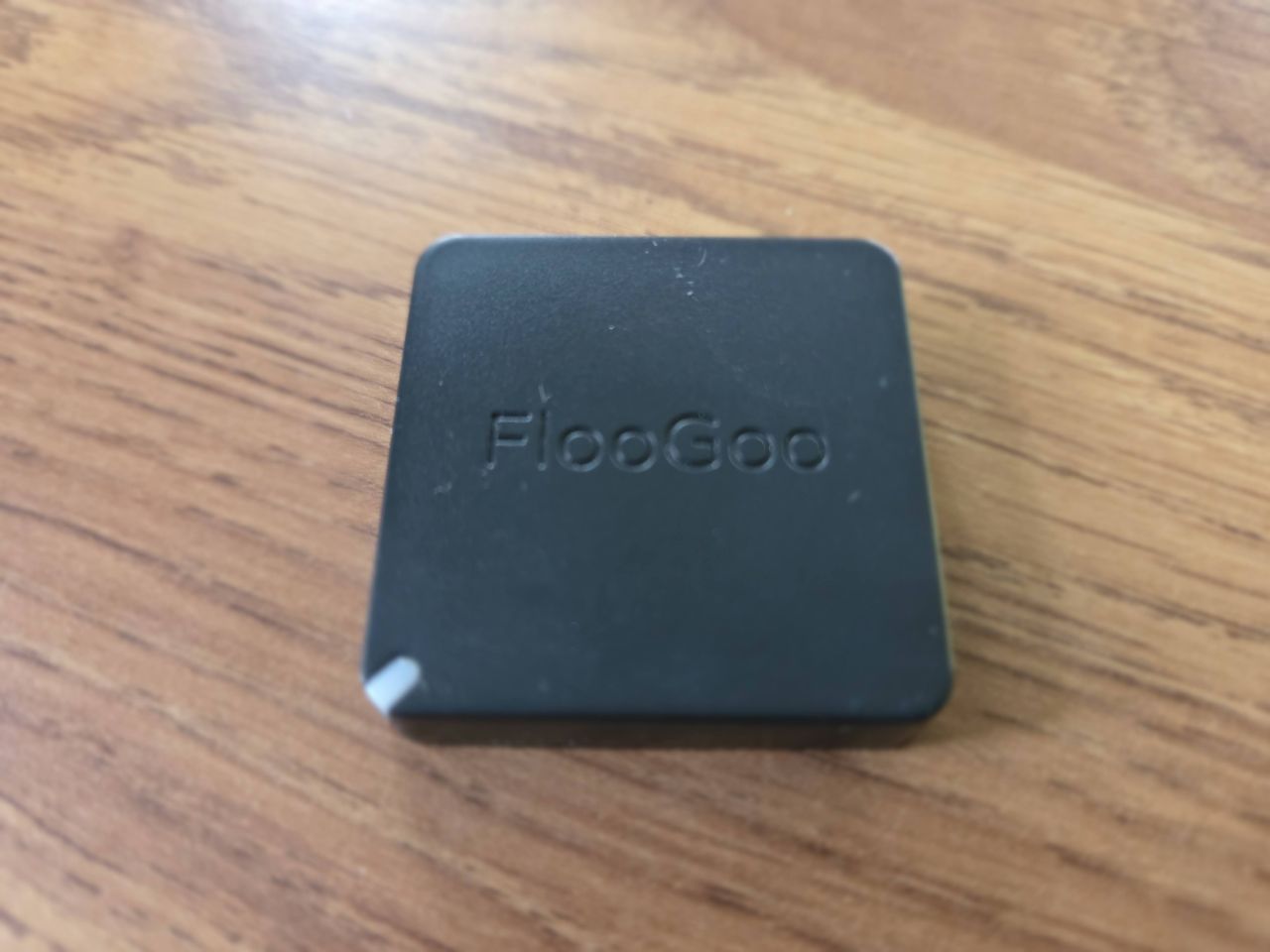
The FlooGoo FMA121 is the next-generation Auracaster from FlairMesh, and is just hitting the shops.
We love the FlooGoo FMA120: we call it a wonder gadget and enjoy showcasing it to people. The small, thumbnail-sized dongle helps bring Auracast to devices that wouldn’t otherwise be able to receive it, and offers backwards compatibility with Bluetooth Classic-enabled hearing devices.
We have high expectations for the FMA121, made by FlairMesh, and for a different device and purpose.
Like its sibling, it is powerful with a small price tag – around £50 including shipping to the UK from Amazon.com – making it attractive for those looking to test Auracast without blowing their budget.
It is primarily for Auracasting sound from a television, a smart speaker, a tablet, or a computer rather than pairing with a mobile phone, which means it has a slightly different marketplace to its sibling. It uses Bluetooth 5.4.
First impressions of the FlooGoo FMA121
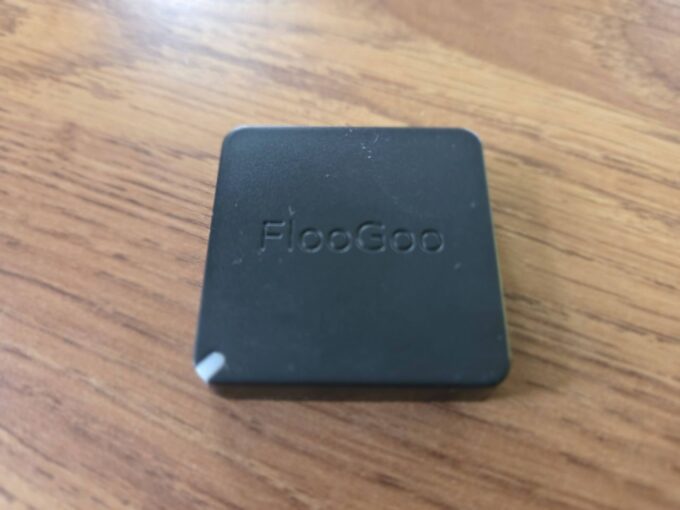
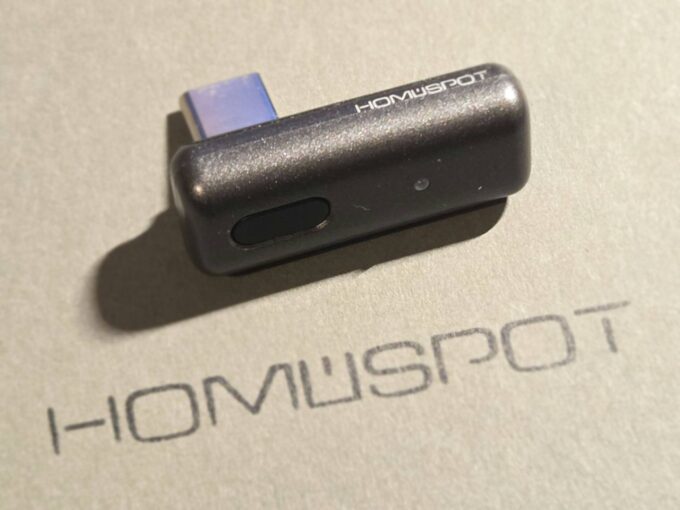
The package is small: about half the size of a mobile phone, so it can easily slip into a pocket – it’s the opposite approach to the HomeSpot BA308 nano dongle, which goes for a luxury package to get around the fact it is a small device.
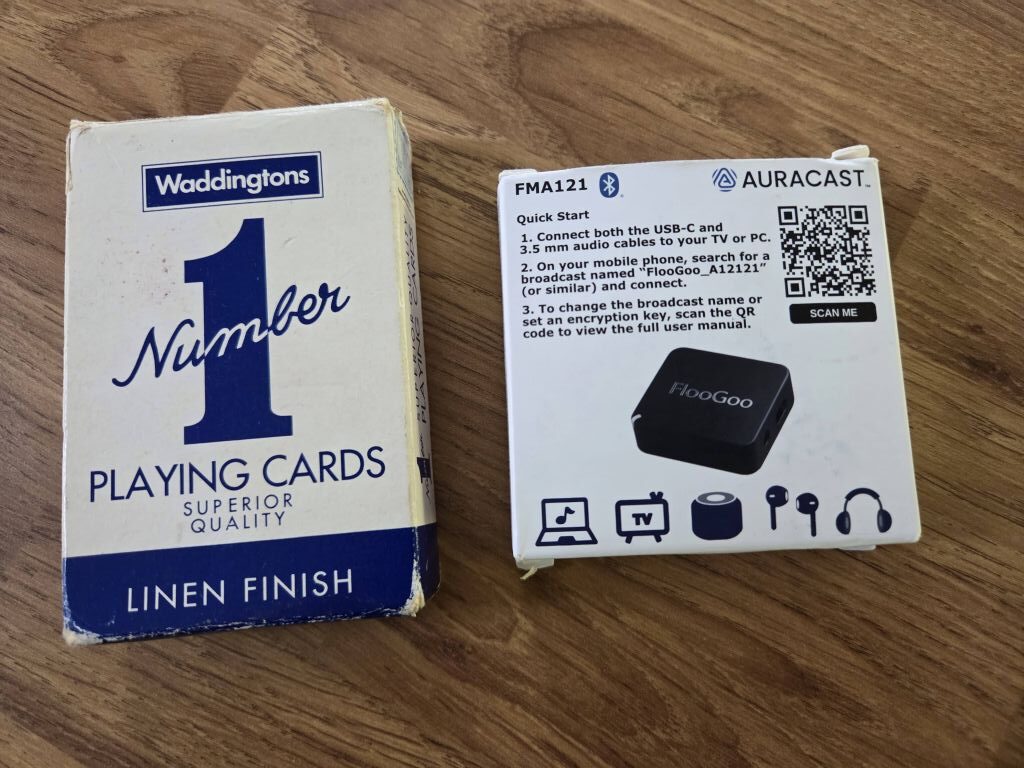
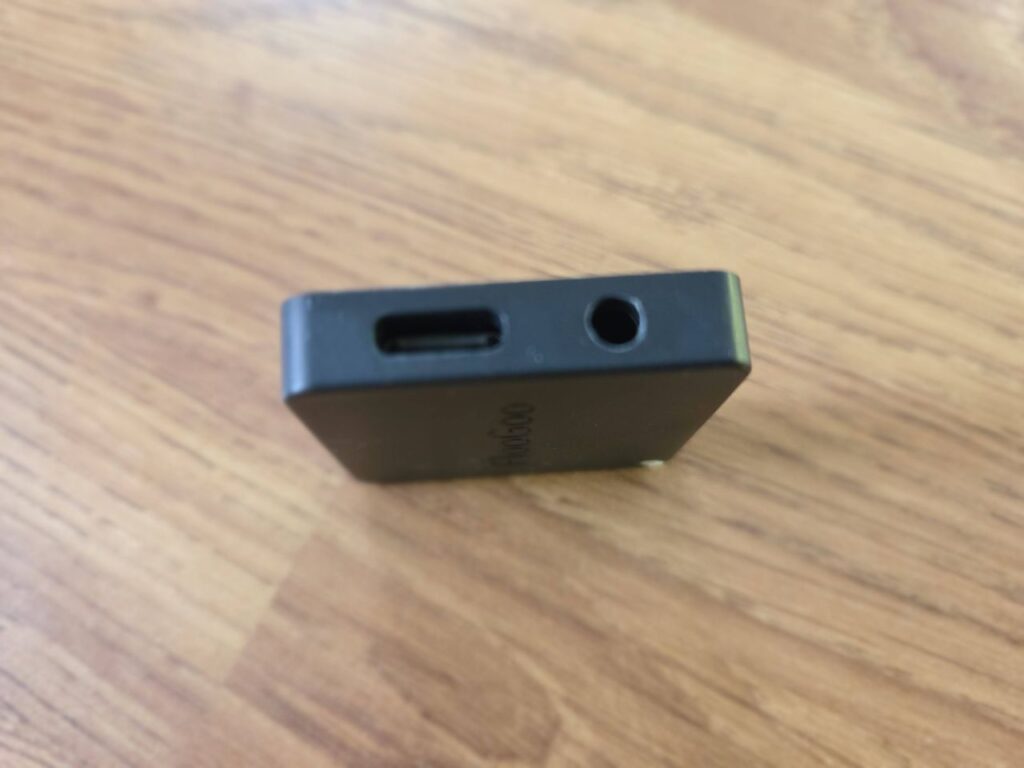
Open the box, and you’ll find three things: a 3.5mm headphone cable, a USB power cable with both a USB-A adapter and USB-C ends, and the FlooGoo FMA 121.
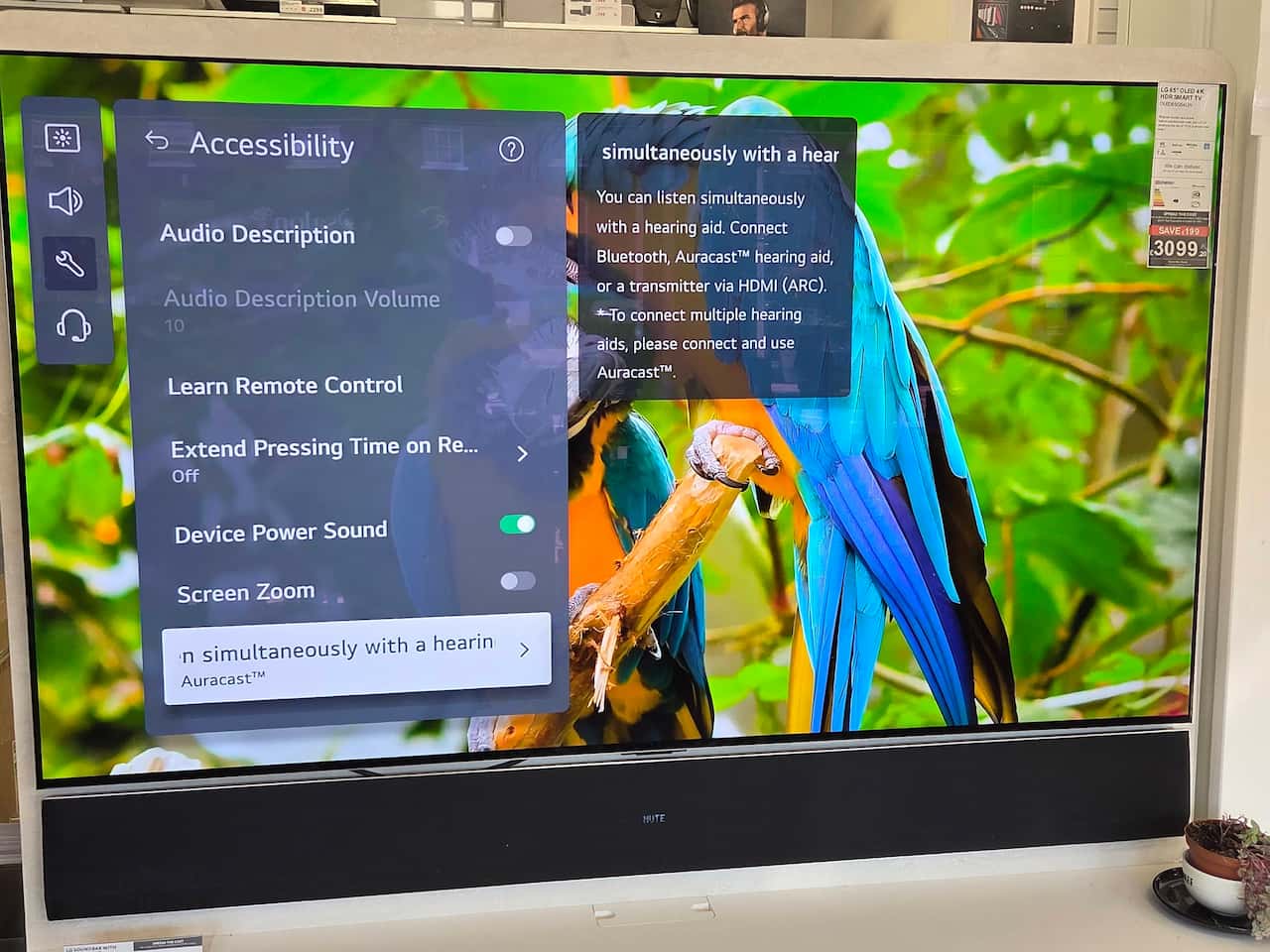
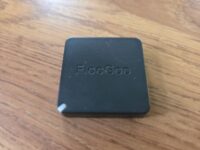
And like its sibling, this new FlooGoo is tiny.
We have already been bowled over at the miniaturisation that Auracast brings to TV streamers: our first TV streamer was Widex’s DEX – about the size of a paperback book. Oticon’s Connect was smaller: slightly larger than a mobile phone and thicker. ReSound’s Auracast TV Streamer is small enough to be mounted directly to the back of the TV and powered by it.
And now comes the FlooGoo FMA121, even smaller still – closer in size to a special issue postage stamp. The size is a surprise, but don’t let it put you off: this is a powerful device.
How do you connect the FlooGoo FMA121?
The cables are essential: USB powers the device, and in its straight-out-of-the-box mode, the FlooGoo requires a power source to work. If a phone is the power source, FlairMesh says it will consume about 1% of battery life for two hours of audio playback; that’s impressive. Our informal testing bears this out.
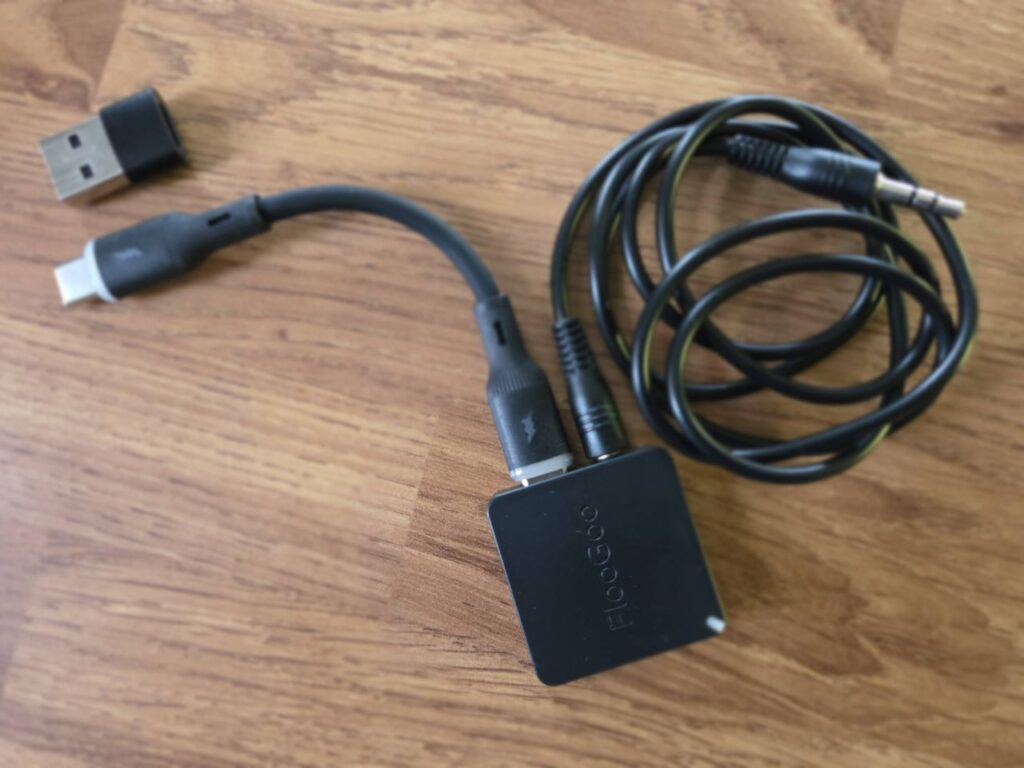
Needing a power source means it differs from the dongle, which draws its power directly from the USB-A port of device it is plugged into.
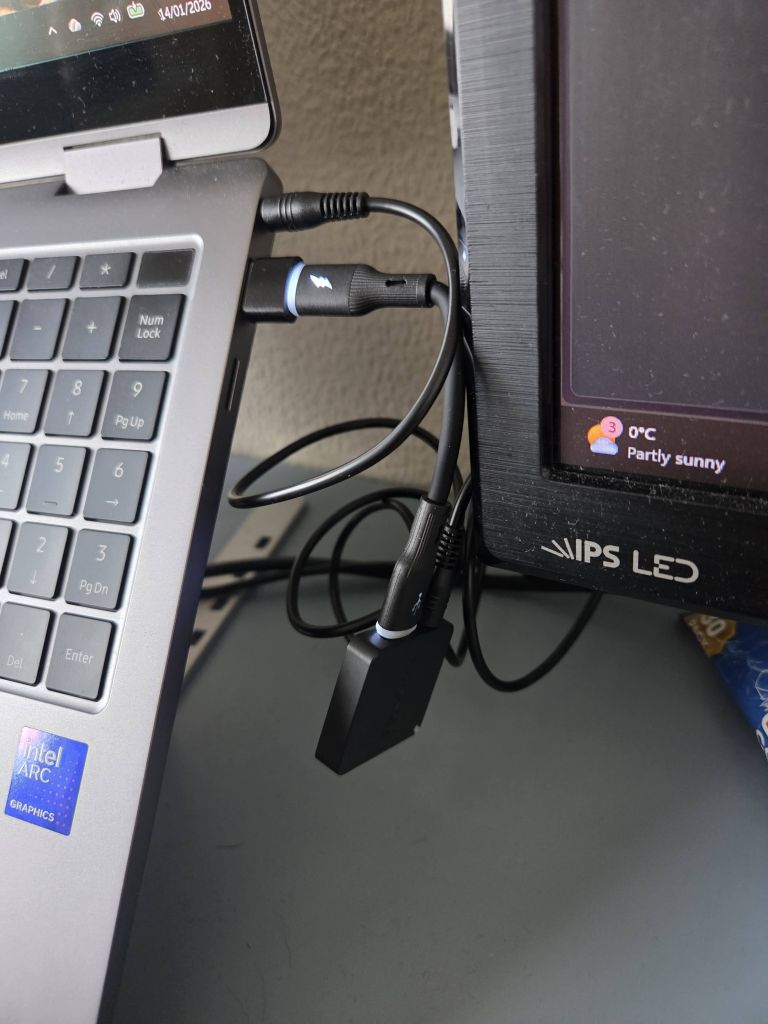
The 3.5mm headphone cable plugs into the device’s headphone jack, and that’s it, ready to go.
However, you can adjust the settings in the FlooCast app to have the USB-C port power the device, allowing it to be plugged into tablets and mobile phones. In this mode, it acts like its predecessor, but instead of being connected like a USB thumb drive, it waves about in space.
Future iterations could benefit from a magnet to attach to the back of a laptop or phone.
The other ‘however’ is a big one.
If this is to be used to connect to televisions, many users will prefer the Digital Audio (TOSLINK) port on the back of the box. It seems strange that Flairmesh has created a TV streamer that, on the surface, doesn’t do this. There is a solution: use a 3.5mm cable for Digital Audio. It’s a shame this isn’t mentioned on the box, and in testing, the cable we use on ReSound’s TV streamer+ didn’t work with the FlooGoo FMA121.
FlairMesh has assured us this will work, and we don’t doubt it.
This is key for home use, as those using a 3.5mm to 3.5mm cable will quickly discover: when it’s plugged in, the external sound is only going to the FlooGoo, so it’s an all-or-nothing device. Anyone who is not using an Auracast will either have to watch in silence or get some Auracast-enabled headphones. That creates a problem rather than solves it.
Lights on the FlooGoo FMA121 indicate its status. Flashing slowly, and it is idle, fast, and it is searching for something to pair to. Flash twice in two seconds, and it’s paired but idle; flashing three times in two seconds, and it’s streaming. This could be annoying when in use, but it is not bright enough to light up the whole room, and it can be switched off from the PC app.
To connect, open the Auracast Assistant app and select the FlooGoo. The box will be labelled something like FlooGoo_A12121, and this can be changed in the FlooCast app; simply update the name in the dialogue box.
To access the manual, scan a QR code on the box.
What’s the sound like?
For our initial test, we plugged the FlooGoo FMA121 into a tablet with an external power source. It worked without any need for intervention, and the sound was loud and clear.
Using the FlooCast app, we changed the settings so it would function as a traditional Auracaster without picking up audio from the 3.5mm cable. Handy, but it overrides the PCs’ sound settings, so the volume is exceptionally loud. We muted both our hearing aids and the PC used for testing and we could still hear the music at an overly loud volume. This is due to how the FlooGoo transmits, and it is disappointing that the receiving device cannot adjust the volume to a comfortable level.
A firmware update fixes this, and we can confirm this works removing the issue. But how many people will think to update their firmware?
This is not an issue with the Android tablet we were using.
What is the FlooGoo app like?
We date back to before Windows 3.0 transformed desktop computing, which means we remember clunky menus that required careful deciphering and thick instruction manuals. It’s a far cry from the streamlined apps that rely on intuition to work, so seeing this return in the FlooGoo FlooCast app is a bit of a shock.
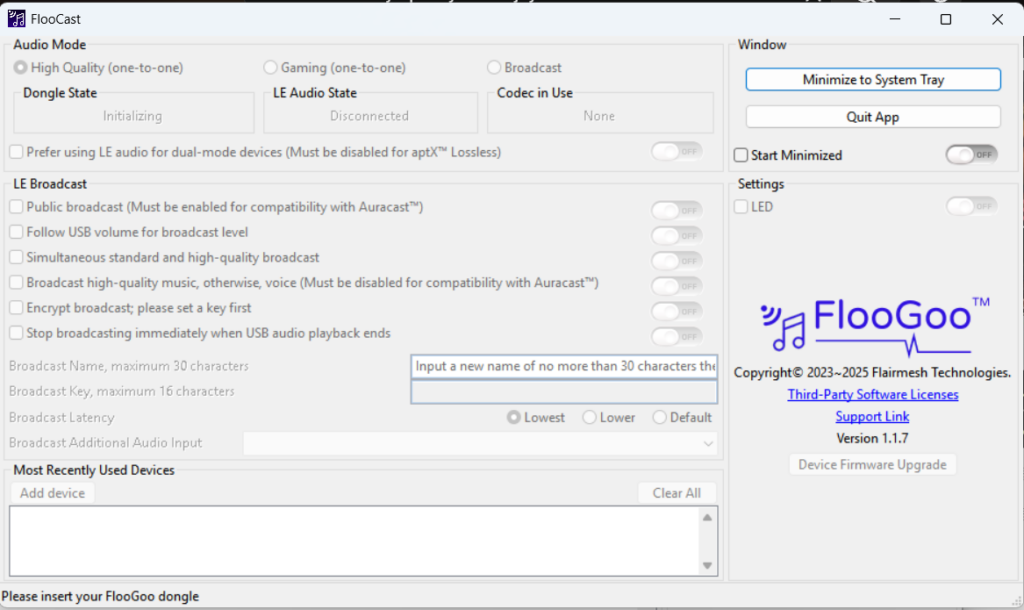
If there is one thing we would like to see in future FlairMesh projects, it is an overhaul of the desktop app to make it look modern. As it stands, the sheer number of options makes this overwhelming for a novice user.
Perhaps a quick setup, asking questions like ‘where will this be used’? will make the experience easier.
What is our overall verdict on the FlooGoo FMA121?
We are impressed by the size and versatility of the FlooGoo FMA121. Now that we have carried out a firmware update it will be used as the main Auracast transmitter in the church we attend: it is so much more portable than any other solution we have come across. And we’re in good company as the technology has helped with the installation of Auracast at Frankfurt Airport.
But while the FMA121 is still an impressive device, there are some things we don’t like about it.
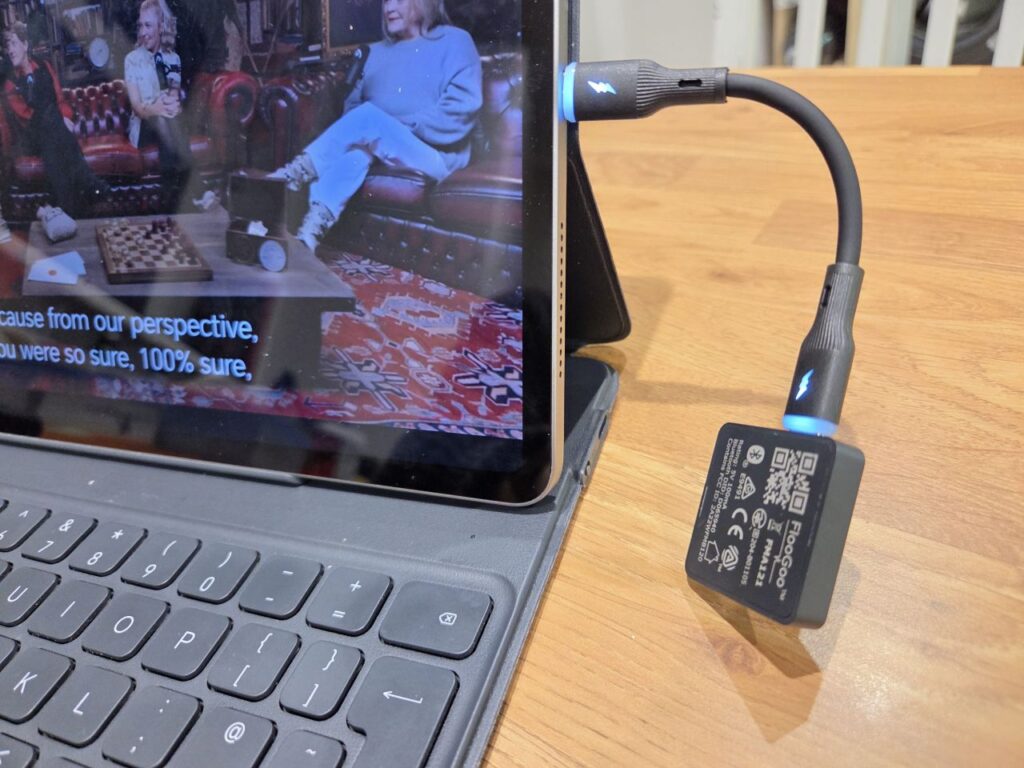
The small USB-C power cable means it is effectively suspended in mid-air and is an inelegant solution, especially when plugged into a mobile phone. As such, right now we prefer its predecessor.
However, some tweaks – such as a magnetic side so it can be attached to laptop screens to avoid the suspended animation – and an improved interface, and any next generation device could be a knockout.











The FMA120 supported audio in/out. Was hoping the FMA121 was the same but for analog audio. Unfortunately, FMA121’s TRS 3.5″ jack only supports audio in and not audio out (microphone). Maybe in a future product?
With the FMA120 and FMA121 seemingly so similar, I wonder how feasible would it be to have the FMA121 be a product where a FMA120 is plugged into it to add analog audio interfaces, like an add-on or expansion.